A little space for
a deeper perspective.
From your first installation to a publication that feels like your own. Everything you need to get started with Margin.
From a fresh install to your own publication.
Margin is an editorial theme for in-depth analysis: a curated homepage, an easy-to-explore library, and a focused space for long-form reading.
Install your theme
Upload the ZIP, activate Margin, and configure your routes.
02Make it your own
Explore colors, typography, and all 20 theme options.
03Publish your first essay
Write your content, assign topics, and build your library.
Requires Ghost ≥ 6.0.0.
Tested with Ghost 6.72.0.
Your own copy uses the language of your publication.
No code changes needed for the settings covered here.
One ZIP. A fresh perspective.
Download the theme package
Use
Get Marginmargin-0.5.3.zip. Keep it zipped when uploading to Ghost; do not upload this documentation folder as a theme.Upload and activate
In Ghost Admin, go to Settings → Theme → Change theme → Upload theme. Choose the ZIP, wait for Ghost to validate it, then select Activate.
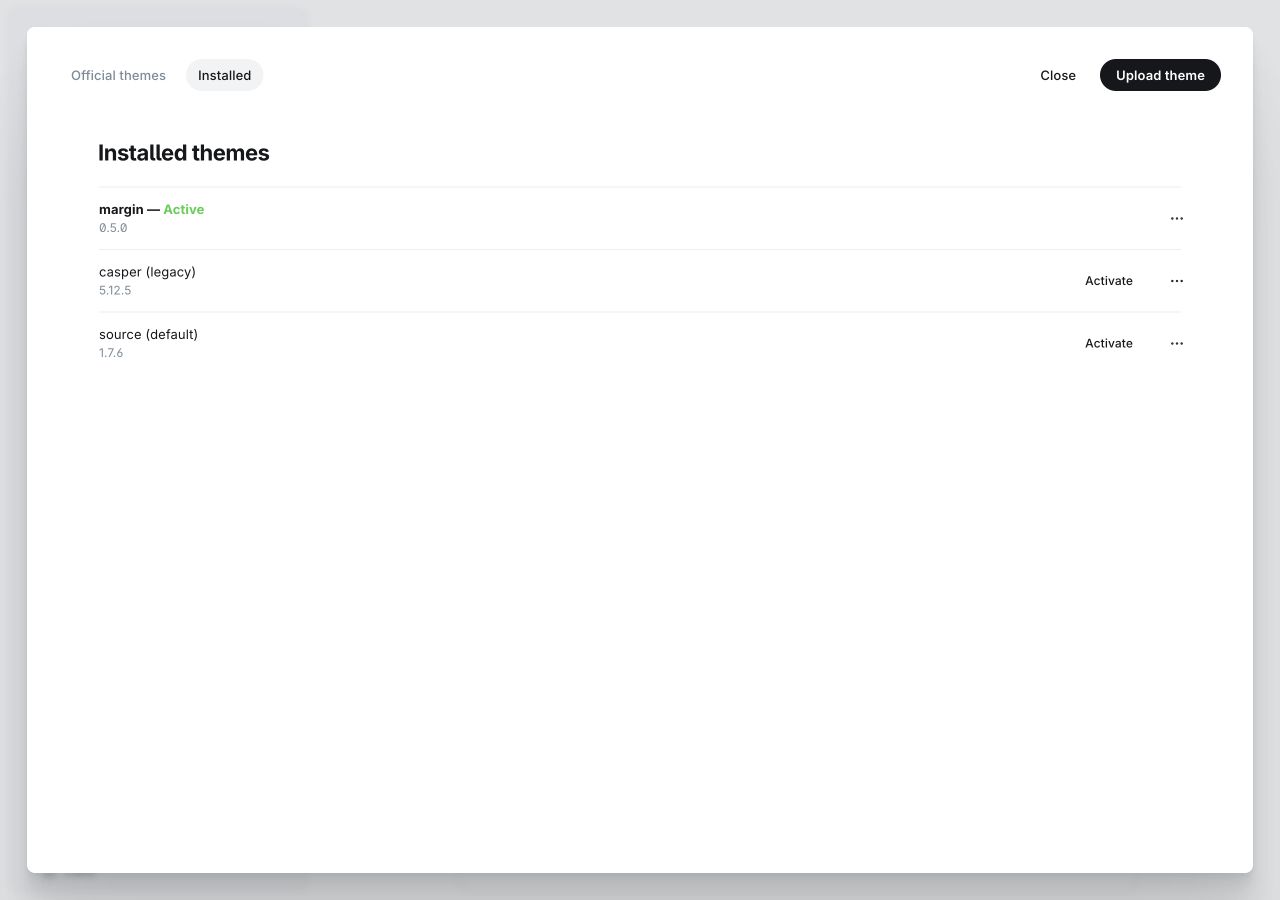
01 Find the theme installer- Click Upload theme to open the installer.
- After uploading and activating, confirm that margin shows Active. This is a status indicator.
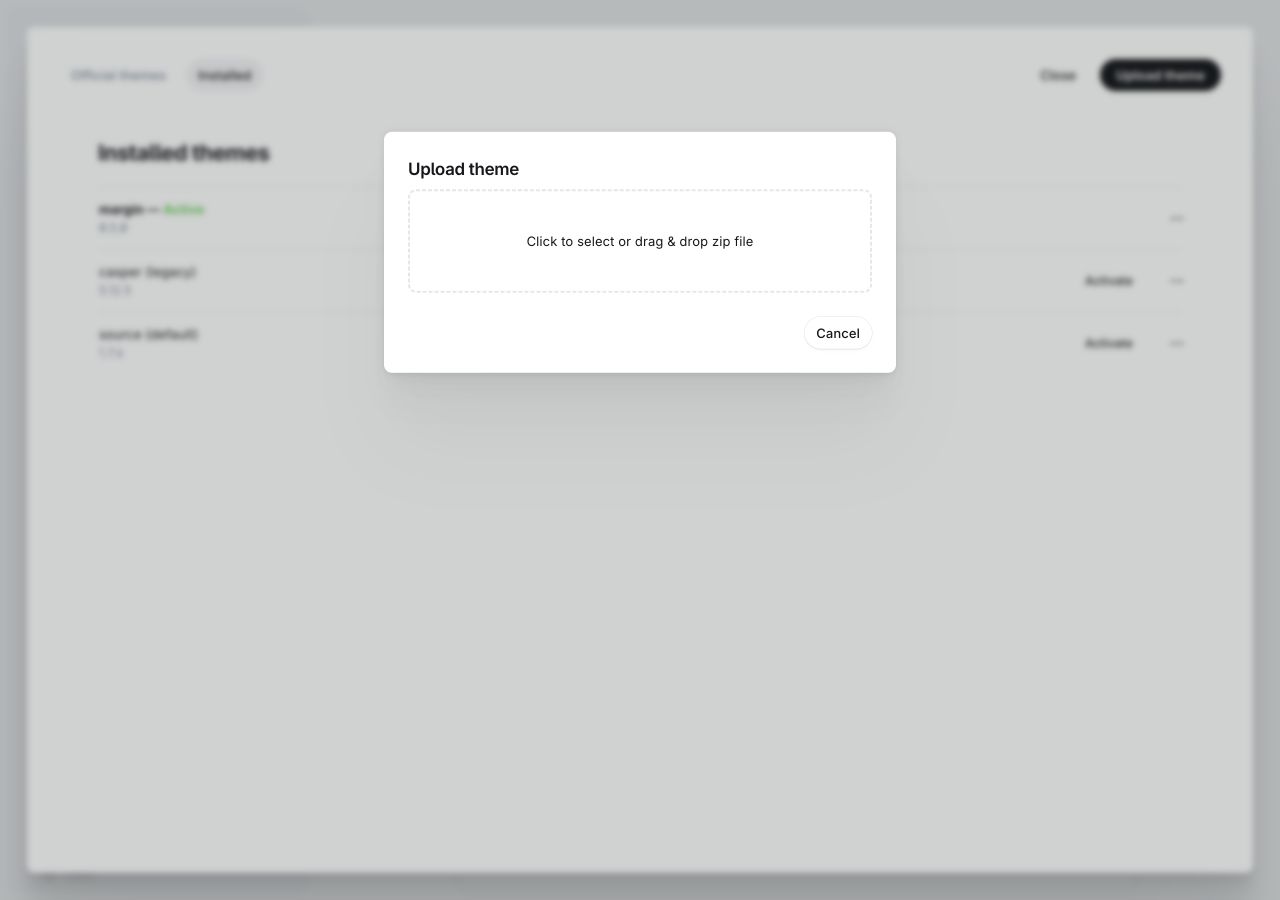
02 Choose the theme ZIP- Click the outlined file area and select
margin-0.5.3.zip, or drag the ZIP into it. Then follow Ghost’s validation and activation prompts.
Upload routes.yaml
Open Settings → Labs (choose Open if prompted). Find Routes, open the ⋯ menu next to Edit, and choose Upload file. Select the included
Download routes.yamlroutes.yaml. Earlier Ghost versions may label this action Upload routes YAML.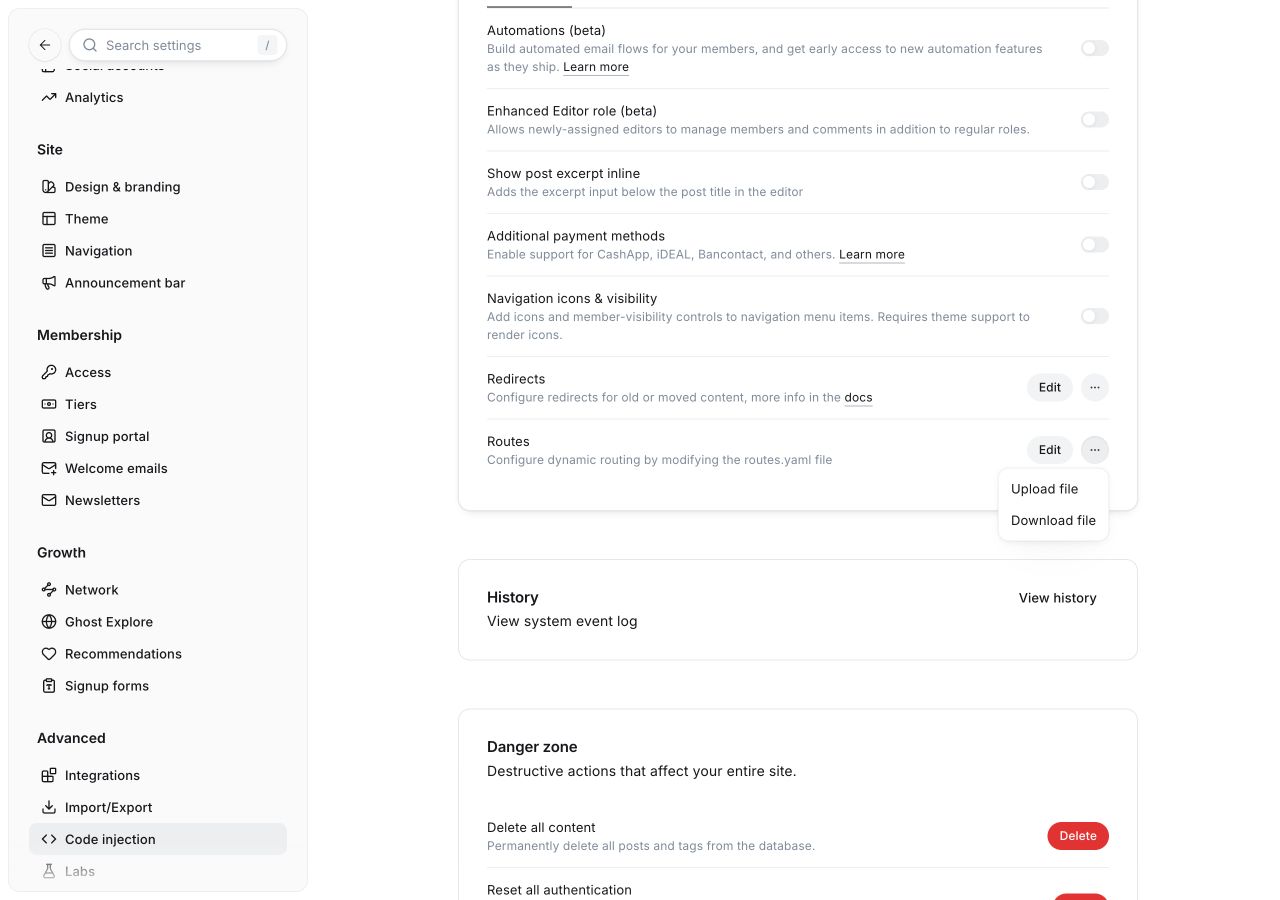
03 Upload your routes file- In the Routes row, click the ⋯ menu beside Edit.
- Choose Upload file and select
routes.yaml.
Check your website
Visit the homepage and
/library/. If your site is empty, publish a few posts before reviewing the content sections.
Do I need to upload a database or demo content?
No. The ZIP contains the theme, routes, and instructions. Installing a theme does not create posts, tags, an About page, or user accounts. Databases, email, and local testing tools are not included.
Is an uploaded ZIP linked to my source folder?
No. Ghost extracts a separate copy into the website’s content/themes/ directory. To apply changes from an external source folder, build and upload a new ZIP unless you have explicitly configured a development symlink.
Connect your routes and navigation.
The included routes file sets up your homepage, essay library, and topic index. Upload it during initial setup, or when you deliberately change your routing structure.
| Route | Page | Content source |
|---|---|---|
/ | Editorial homepage | Hero, latest posts, featured posts, tags, and signup |
/library/ | Paginated essay library | 9 posts per page |
/topics/ | Topic index | Public tags with published posts |
/{slug}/ | Individual post | The post slug in Ghost |
/tag/{slug}/ | Tag archive | Tags you create |
/author/{slug}/ | Author archive | The author’s Ghost profile |
/library/rss/ | RSS feed | Published posts |
Create an About page
In Pages, create your introduction page with the slug about. Publish it to make /about/ available.
Set up your menus
Go to Settings → Navigation. Use Primary navigation for the header and Secondary navigation for the footer. For example:
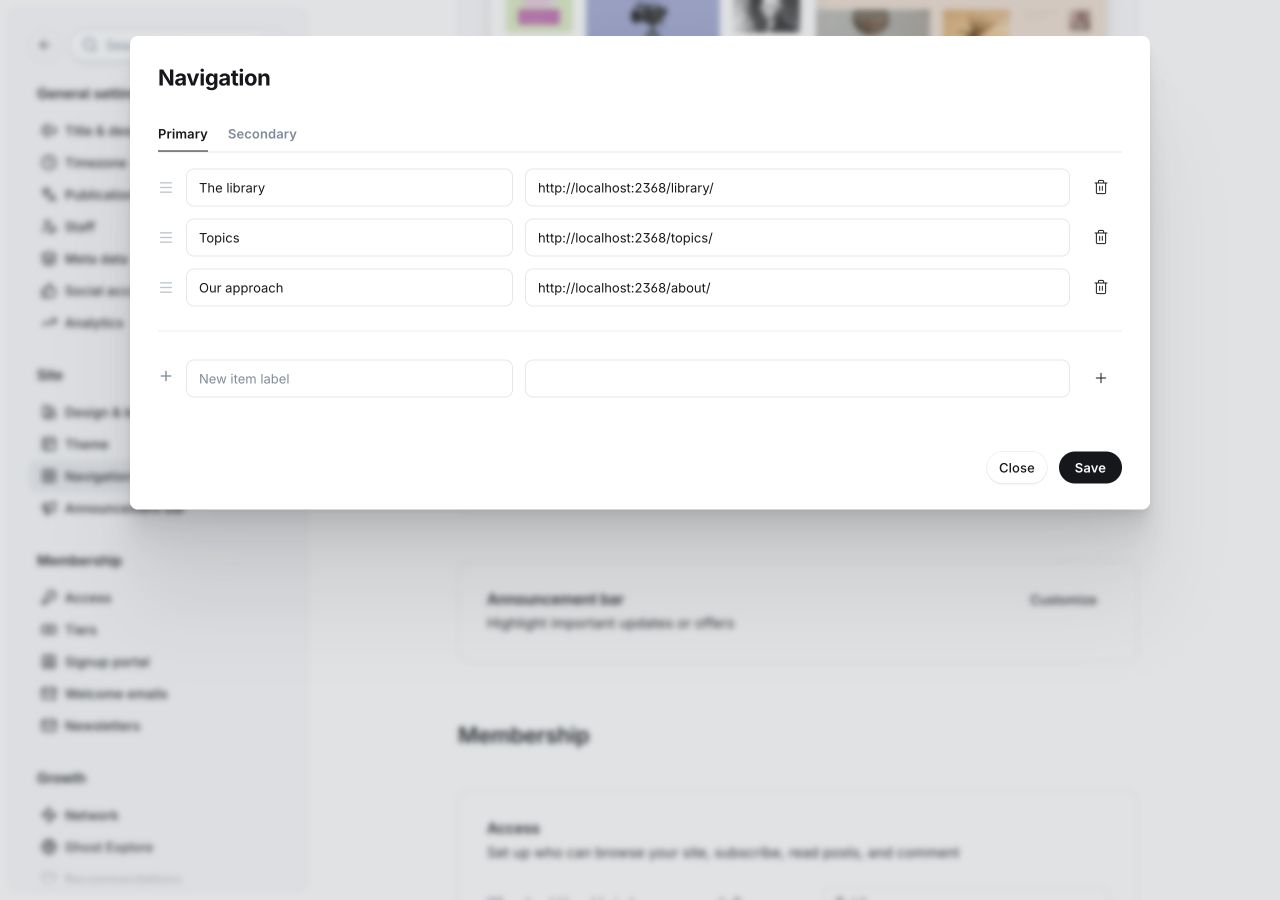
- Open Settings → Navigation → Customize and select Primary. Margin uses this menu in the header.
- Edit an existing link’s Label and URL. Drag the handle at the left of a row to change its order.
- To add a link, enter its label and destination in the empty bottom row. Use your own website’s URLs, such as
/library/. - Click the + button at the right of the new row to add the item.
- Click Save, then check each header link on desktop and mobile.
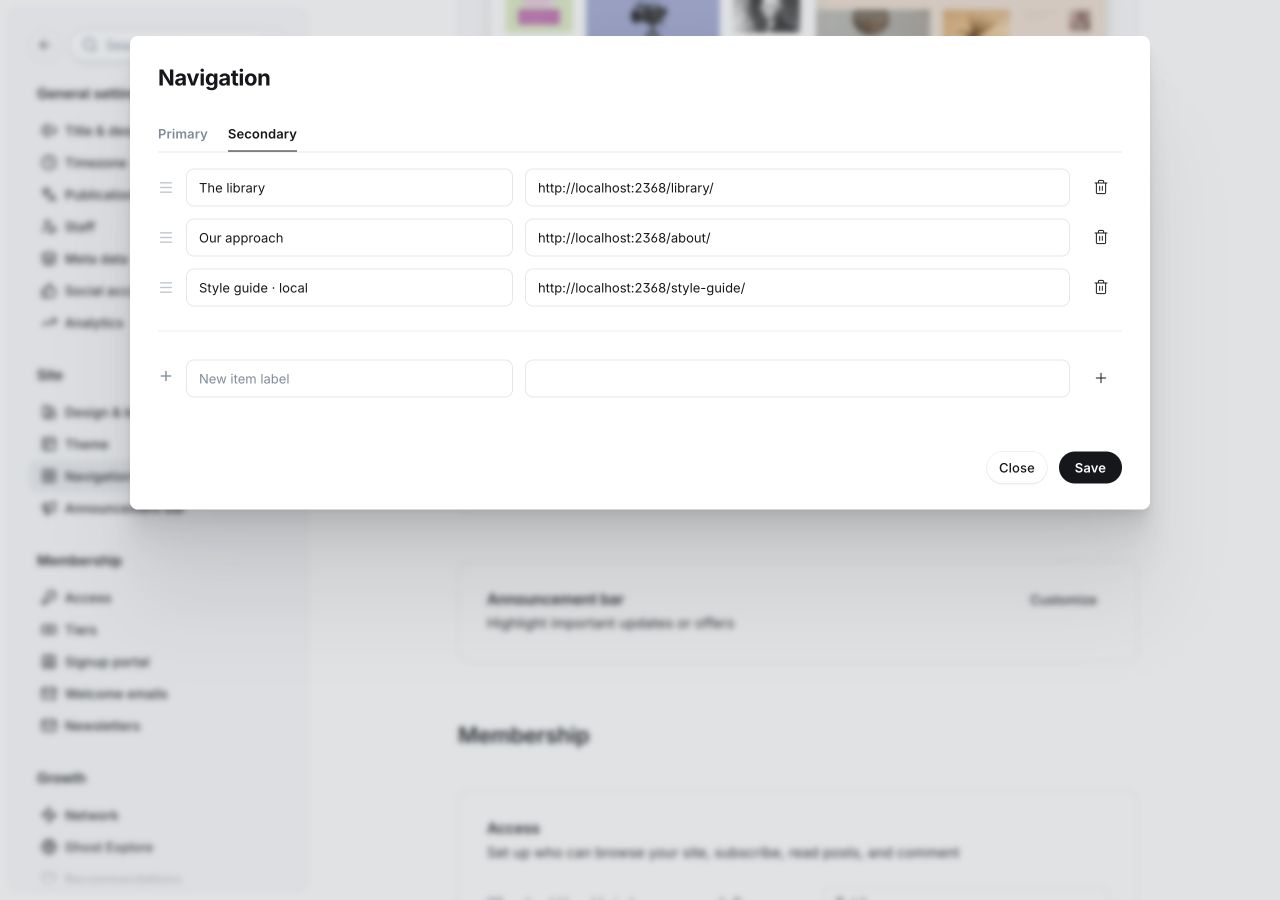
- Select Secondary to edit Margin’s footer links.
- Edit labels and destinations, or use the same add and reorder controls as the Primary menu. The local demo links shown here are examples; replace them with your own published pages.
- Click Save, then check the footer on your website. Menu changes do not create or publish the destination pages.
Start with your name, logo, and fonts.
Change your logo, Heading font, and Body font in the Brand tab. Manage your publication name and description in Title & description. Your name and description also appear in the footer.
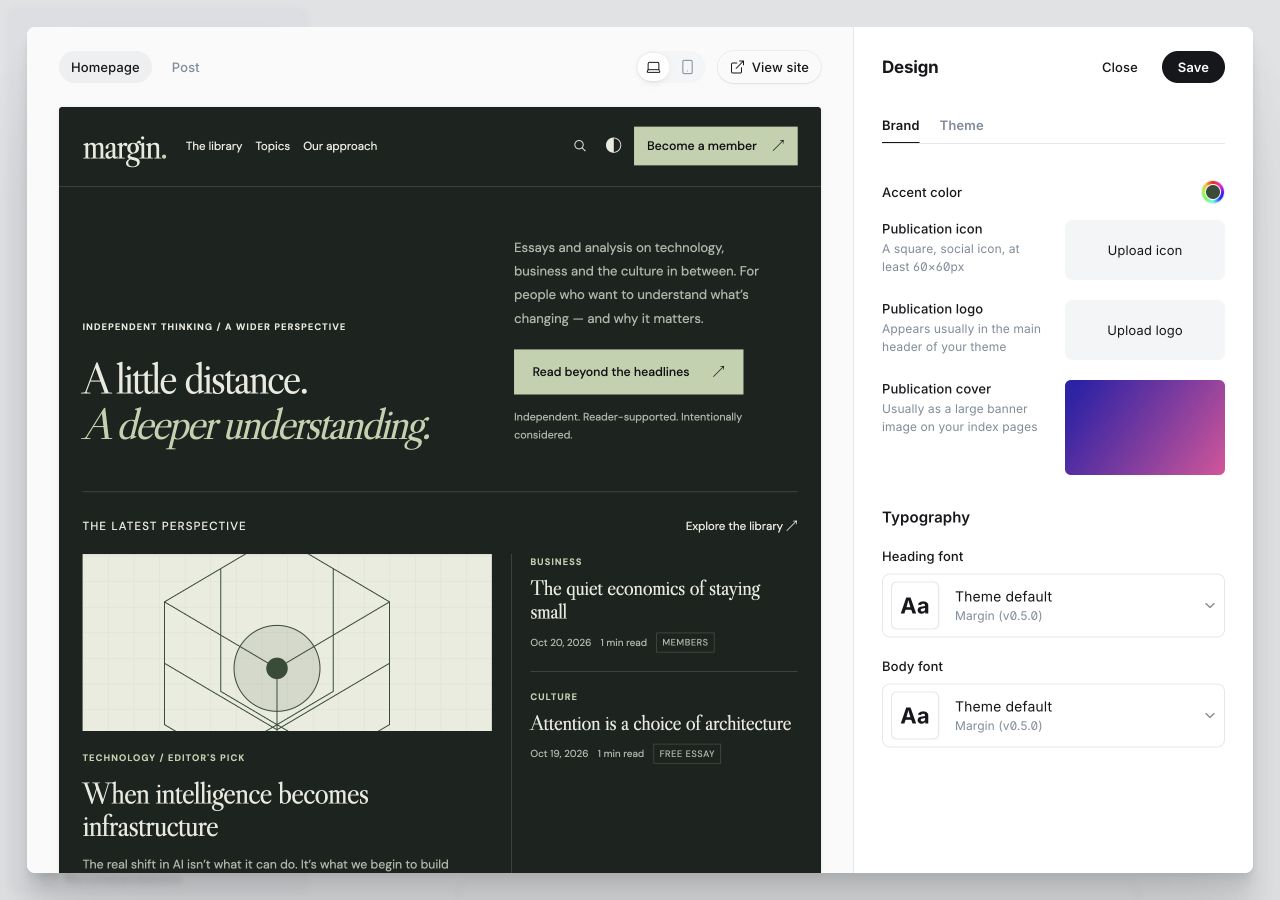
- Select the Brand tab in Settings → Design & branding → Customize.
- Under Publication logo, click Upload logo and choose your logo image. Publication icon is a separate setting.
- Review the preview, then click Save. Check the logo on your website in both light and dark modes.
Select fonts in Brand
Open Typography in the Brand tab to choose Heading font and Body font independently. The picker below shows the heading choices; the body control has its own picker.
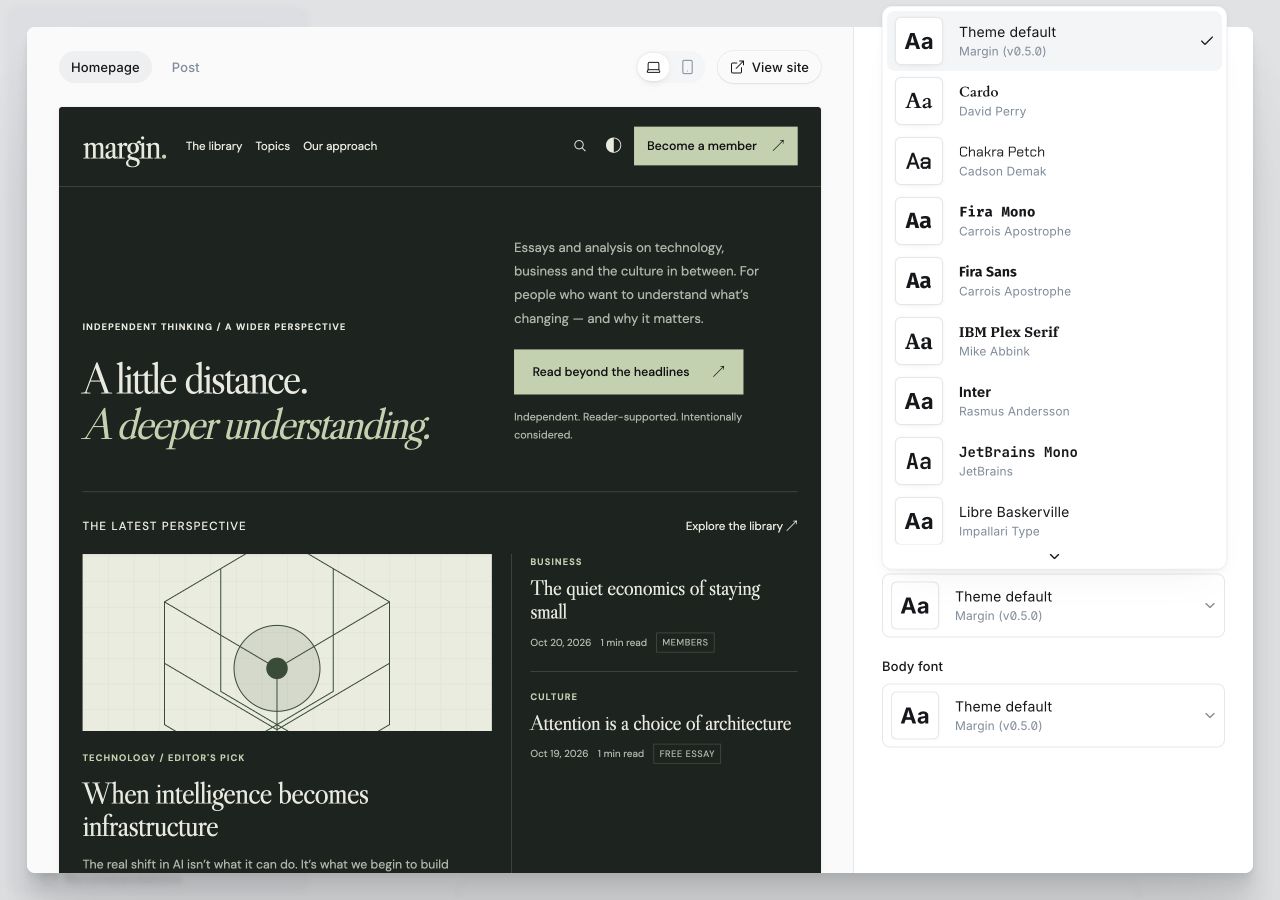
- In Brand → Typography, open Heading font. This screenshot shows its picker already open.
- Select a font from the list; scroll inside the picker for more choices. Choose Theme default to return to Margin’s default heading font.
- Repeat with Body font for content and interface text. Choosing Theme default uses the theme’s body font and Reading style. After selecting fonts, close the picker, preview a post, check accented characters, and click Save (shown in the logo screenshot above).
- No logo? The header displays your publication name as text.
- Heading font: used for theme headings and headings inside Portal.
- Body font: used for content, interface text, Search, and Portal forms. An explicit selection takes priority over the theme’s Reading style.
Font pairs with Vietnamese support
These pairs have been checked with Vietnamese text samples. The Libre Baskerville and Poppins files supplied by Ghost may require fallback fonts for some Vietnamese characters.
The footer currently uses your publication name as a text wordmark. Theme typography settings do not change your newsletter email template.
A considered introduction to your publication.
The homepage has two core sections and three optional sections. Edit the copy in Customize → Theme → Homepage, then click Save.
How do featured posts appear?
Open a post’s settings in Ghost and enable Featured. Margin displays up to 3 featured posts in its introductory reading section. At least one featured post must be published, and Show featured posts must be on.
Where do topics come from?
Create public tags, add descriptions, and assign them to published posts. Margin lists up to 12 tags that have posts, ordered by post count. A post’s first tag is its primary tag, used for topic links and related posts.
When does the signup banner appear?
The banner appears when membership is enabled and the reader is signed out. Show homepage signup controls only the homepage banner. Signup eyebrow, Signup heading, and Signup description supply banner copy across the site.
20 options. One place to customize.
All 20 options live in the Theme tab. The names below match the controls in Ghost Admin.
The screenshots below were captured in Ghost 6.72.0 with Margin 0.5.3. Numbered outlines identify the controls to use; the matching steps below each image remain readable on small screens. Select an image to inspect its highlights, then use Actual size and scroll to read small Admin labels. Screenshots show Ghost Admin in light mode, independently of this guide’s color mode. Admin labels may vary between Ghost versions. All 20 controls are illustrated across the four settings screenshots.
Site wide
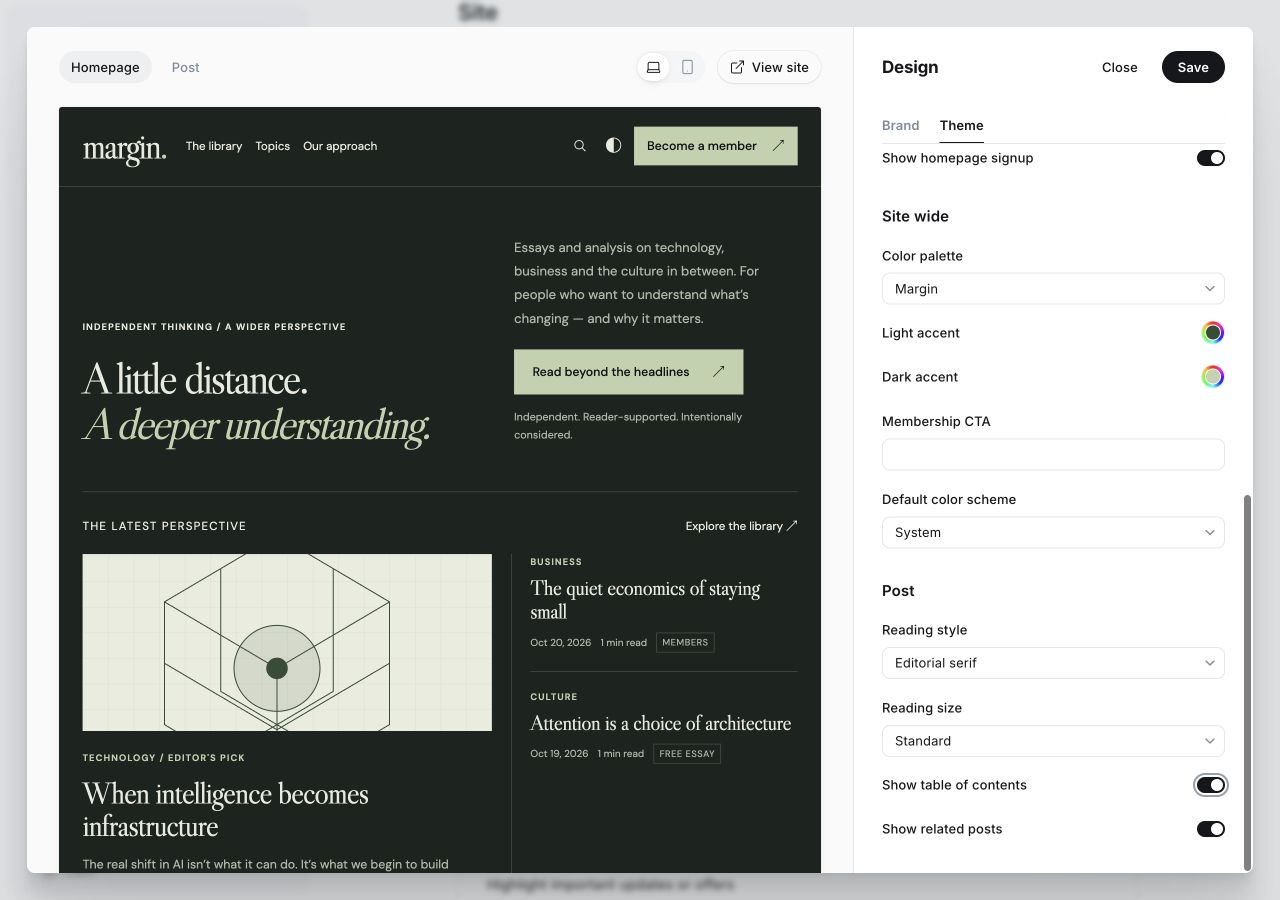
- In Theme → Site wide, edit the five outlined settings. Accent pickers apply when Color palette is Custom.
- Click Save to apply your changes.
| Option | What it does | Default |
|---|---|---|
| Color palette | Margin, Ocean, Clay, or Custom. Presets include light and dark surfaces and text colors. | Margin |
| Light accent | Light-mode accent color. Used only with the Custom palette. | #354d36 |
| Dark accent | Dark-mode accent color. Used only with the Custom palette. | #c0d2ae |
| Membership CTA | Shared signup label in the header, Hero, banners, and signed-out paywall. Leave blank for translated, context-specific defaults. | Blank |
| Default color scheme | System, Light, or Dark. A reader’s saved light/dark preference takes priority. | System |
Homepage
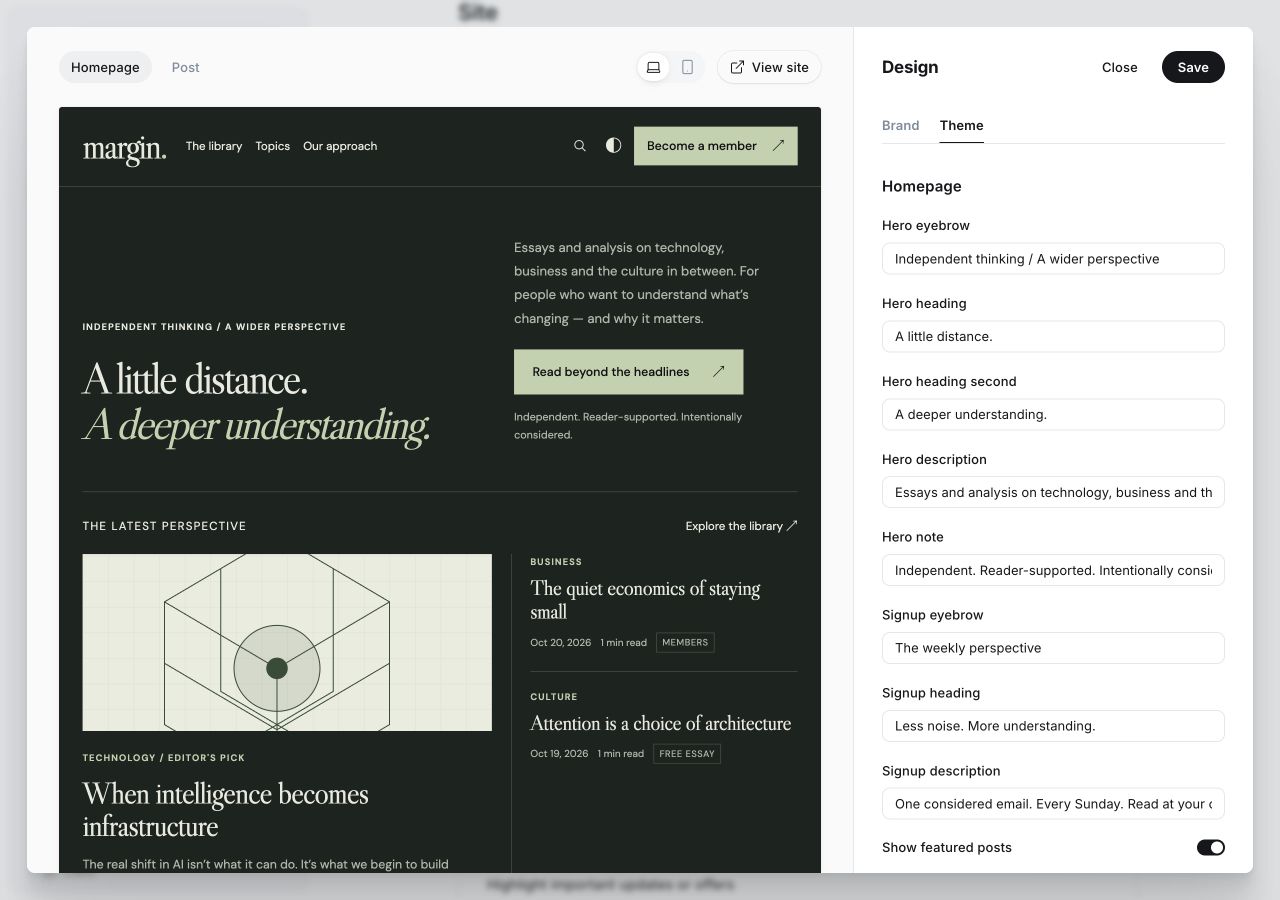
- In Theme → Homepage, edit the eight outlined Hero and Signup text fields. Scroll the settings panel to reach the lower fields.
- Click Save to apply your changes.
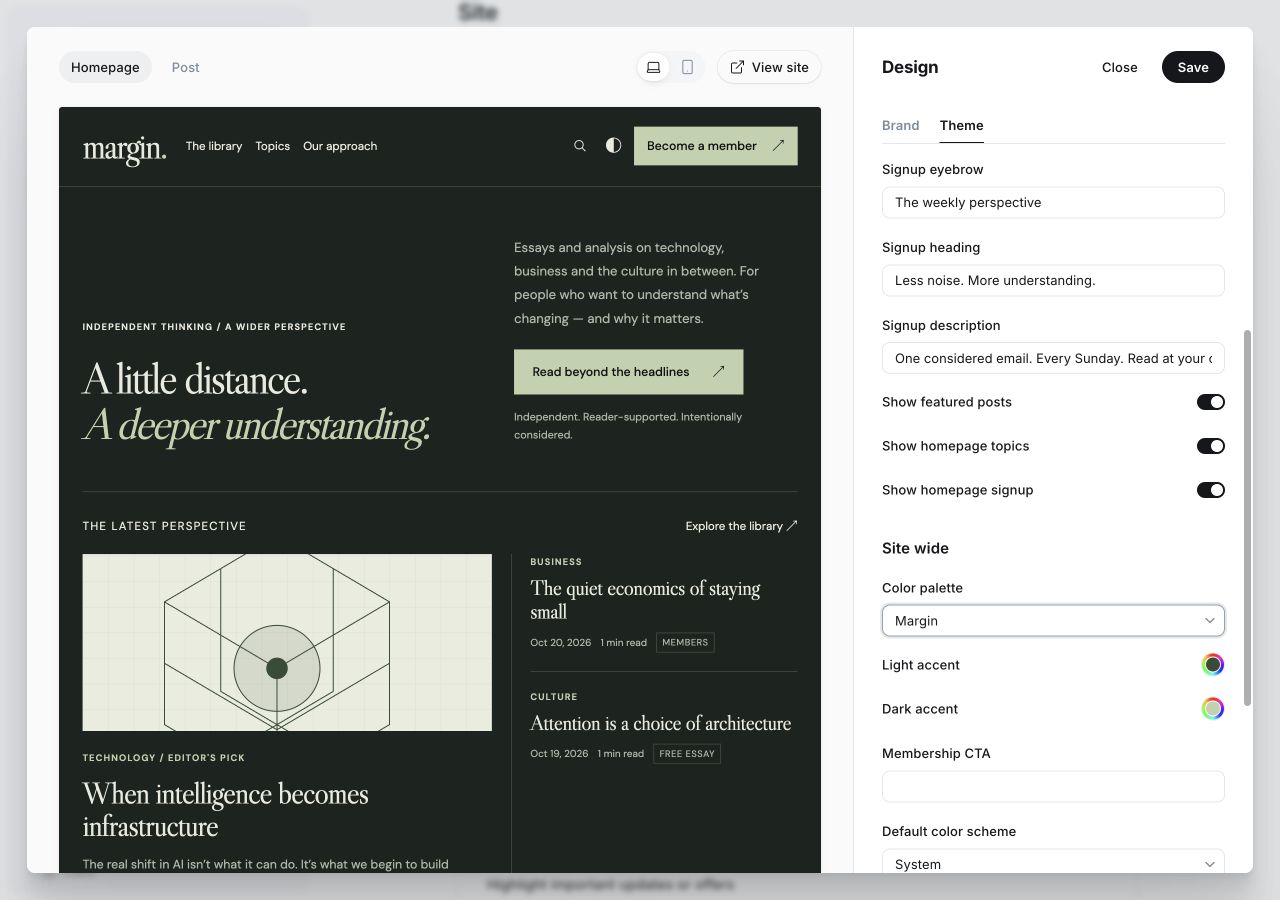
- Use the three outlined switches: Show featured posts, Show homepage topics, and Show homepage signup.
- Click Save to apply your changes.
| Option | What it does | Default |
|---|---|---|
| Hero eyebrow | Small introductory line above the Hero heading. | Independent thinking / A wider perspective |
| Hero heading | The first line of the Hero heading. | A little distance. |
| Hero heading second | The second Hero heading line, using the theme’s emphasis style. | A deeper understanding. |
| Hero description | Introductory paragraph next to the Hero heading. | Essays and analysis on technology, business and the culture in between. For people who want to understand what’s changing — and why it matters. |
| Hero note | Short note below the Hero CTA. | Independent. Reader-supported. Intentionally considered. |
| Signup eyebrow | Small introductory line in signup banners across the site. | The weekly perspective |
| Signup heading | Heading used by signup banners across the site. | Less noise. More understanding. |
| Signup description | Description used by signup banners across the site. | One considered email. Every Sunday. Read at your own pace. |
| Show featured posts | Show or hide the featured-posts section on the homepage. Requires a published Featured post. | On |
| Show homepage topics | Show or hide homepage topics. Does not disable /topics/ or library filters. | On |
| Show homepage signup | Show or hide the bottom homepage signup banner. Other pages retain their membership-aware banners. | On |
Post
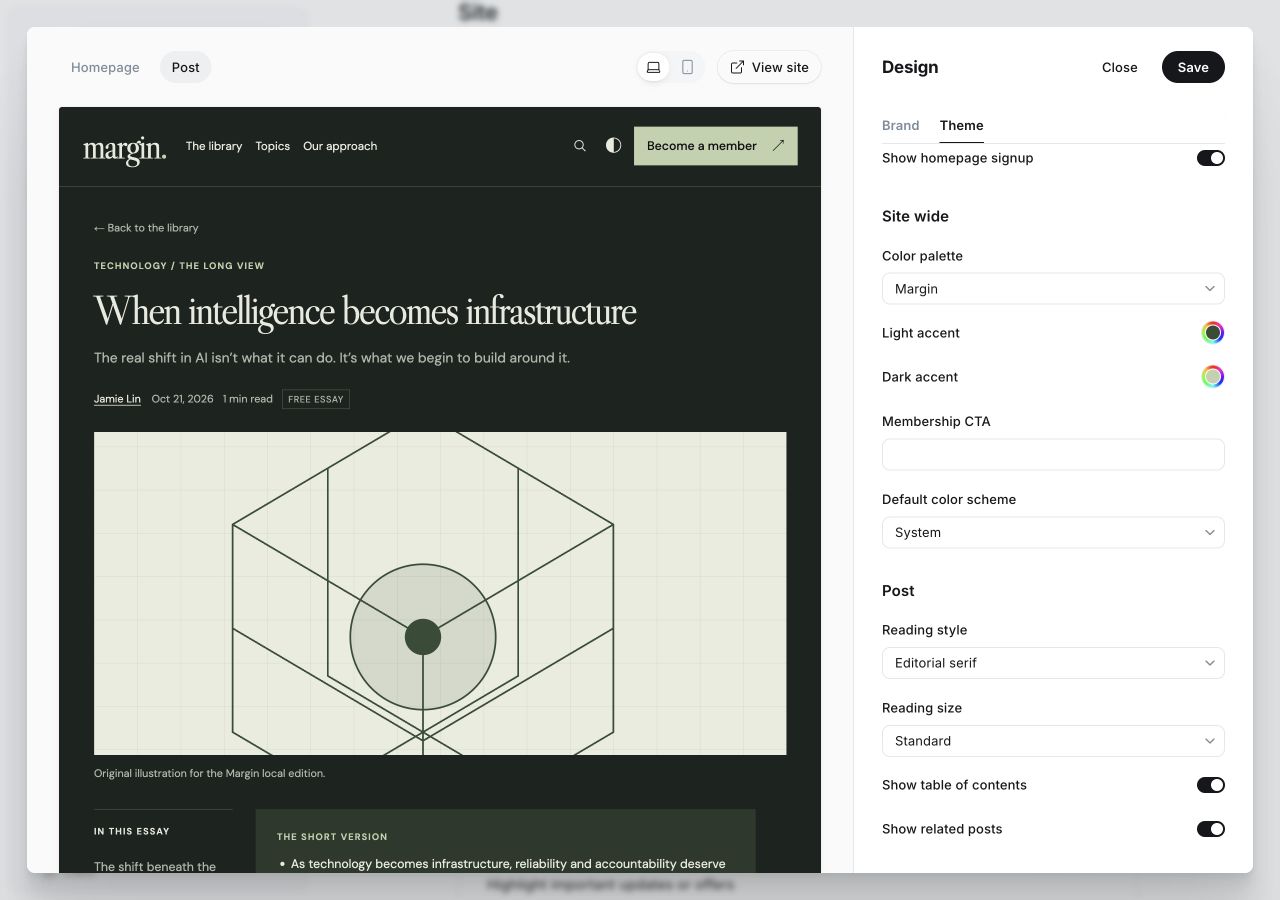
- Select the Post preview tab.
- In Theme → Post, adjust Reading style, Reading size, Show table of contents, and Show related posts.
- Click Save to apply your changes.
| Option | What it does | Default |
|---|---|---|
| Reading style | Editorial serif or Clean sans. An explicit Body font selection in Brand takes priority. | Editorial serif |
| Reading size | Standard: 20px desktop / 19px mobile. Large: 22px desktop / 21px mobile. | Standard |
| Show table of contents | Show or hide the contents rail and its copy-link control. When hidden, the article remains centered at its readable width. | On |
| Show related posts | Show or hide related posts. Requires another published post with the same primary tag. | On |
Your custom CTA is plain text and is not translated automatically. Keep it short, such as “Read with us”. Long header labels are shortened visually on small screens while retaining their full accessible name.
A consistent look, in light and dark.
Choose your own accent colors
Select Color palette → Custom, then set Light accent and Dark accent. Custom keeps Margin’s base surfaces and changes the accent. With JavaScript enabled, the theme may adjust the displayed accent to maintain contrast against its main surfaces; the saved picker value stays unchanged.
The Accent color in Brand is a separate Ghost setting used by email and other publication surfaces. It does not replace Margin’s two Custom accent settings.
Light and dark preference order
Readers can switch modes using the header toggle. Margin remembers their choice in that browser and synchronizes it between tabs. Search and Portal follow the website’s resolved color mode.
Article text size
Choose Reading size → Large for a publication focused on long-form reading. Search and Portal forms use their own text sizes and do not follow Reading size. After changing fonts, check long titles, images, and data tables.
Write for a deeper reading experience.
Margin works with Ghost’s native editor. Start with ordinary content, then add images, lists, quotes, and editor cards as needed.
A well-prepared post includes
- A clear title that works without an image.
- A custom excerpt for the introduction below the title.
- A primary tag connecting topics and related posts.
- A feature image, alt text, and caption when using an image.
- H2 headings to generate the table of contents.
Contents and related posts
The contents rail uses H2 headings, not bold paragraphs or H3 headings. If there are no H2s, Margin hides the rail automatically. Turning it off in theme settings also hides its copy-link control.
Related posts show up to 3 other posts with the same primary tag. If none match, the section does not appear.
Create and configure a post
Start in Ghost Admin → Posts. The screenshots below show a blank editor and an existing sample article so you can locate the controls before making changes on your own site.
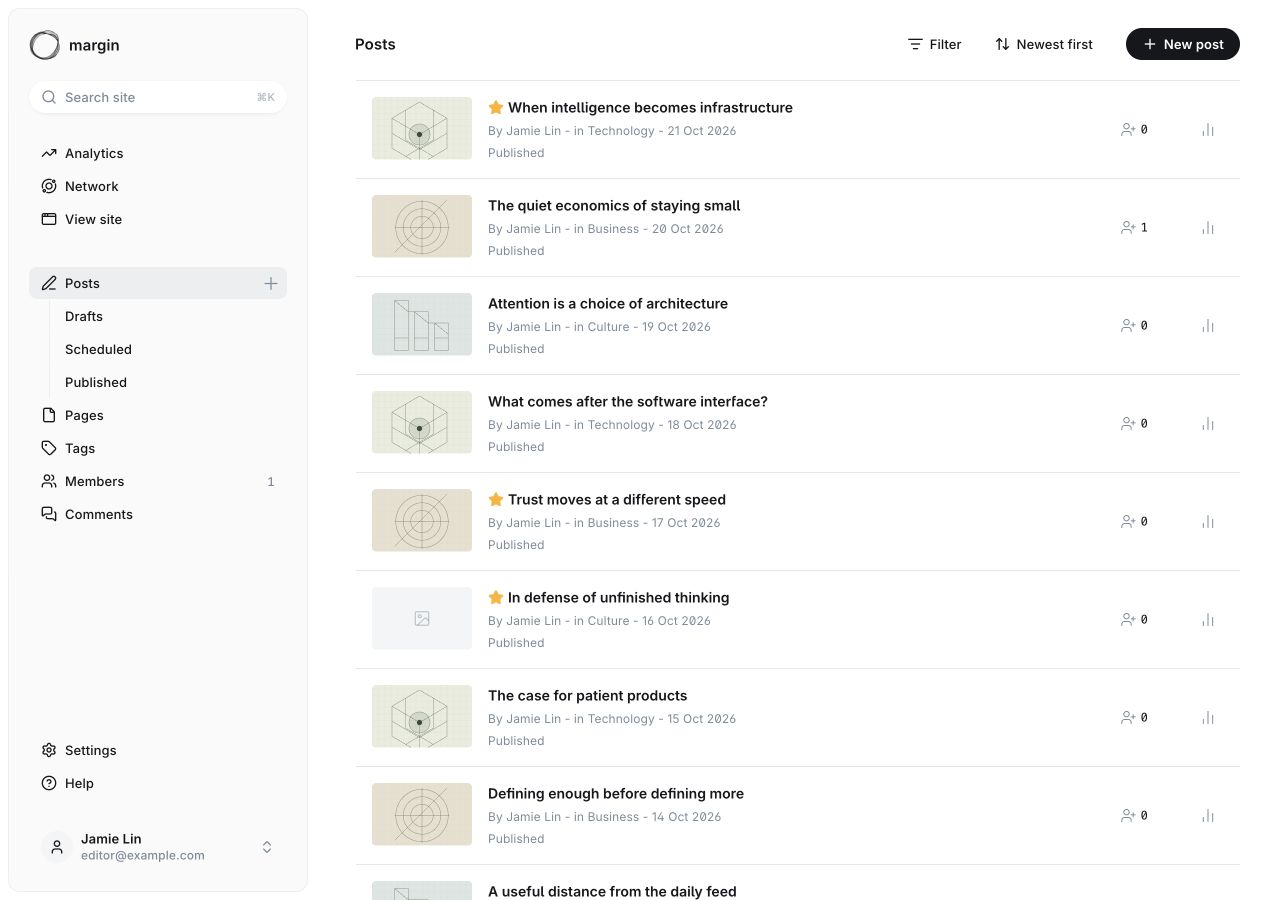
- Open Posts in Ghost Admin.
- Click New post to open a blank editor.
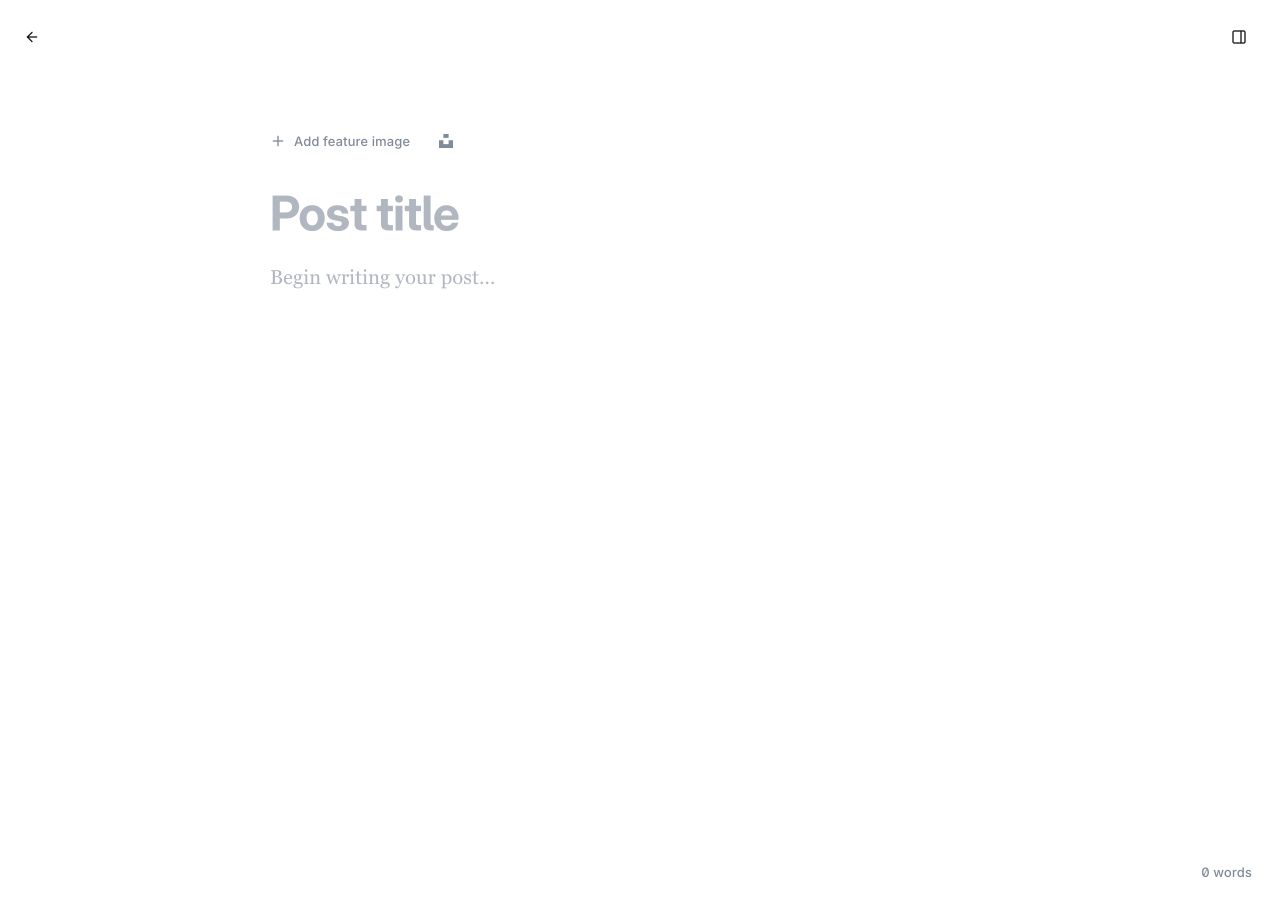
- Enter your headline in Post title.
- Click Begin writing your post… to write the article. Use H2 headings when you want Margin to generate a table of contents.
- Use Add feature image if the post needs an image. This is separate from the Featured status shown below.
- Open Settings at the upper right to manage tags, access, excerpt, and Featured status.
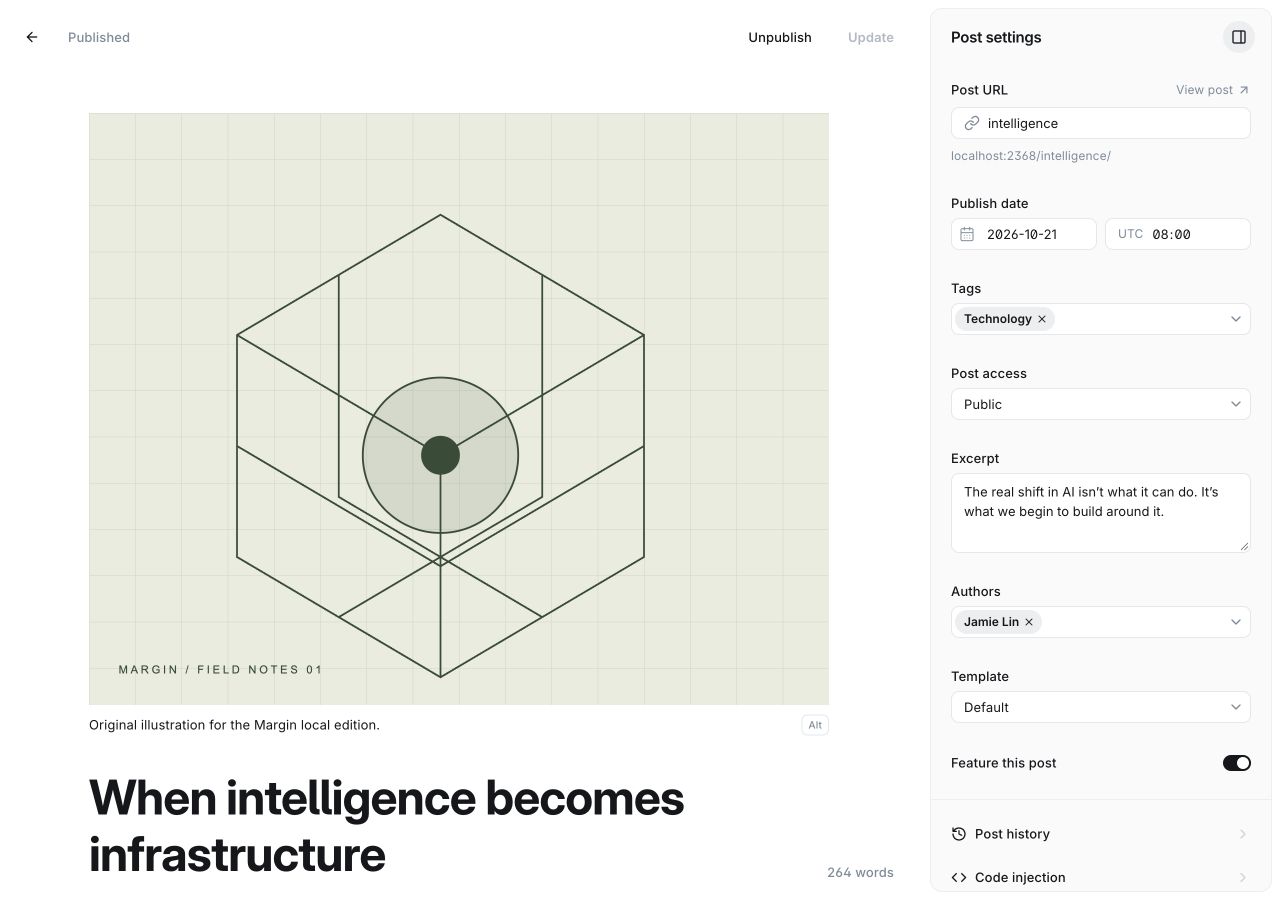
- Use the upper-right Settings button to open the post settings panel.
- Find Tags to organize the article. The tag picker is illustrated in the next screenshot.
- Turn on Feature this post when you want the article considered for Margin’s featured section. The switch is already on in this example. The post must be published and Show featured posts must be enabled in theme settings.
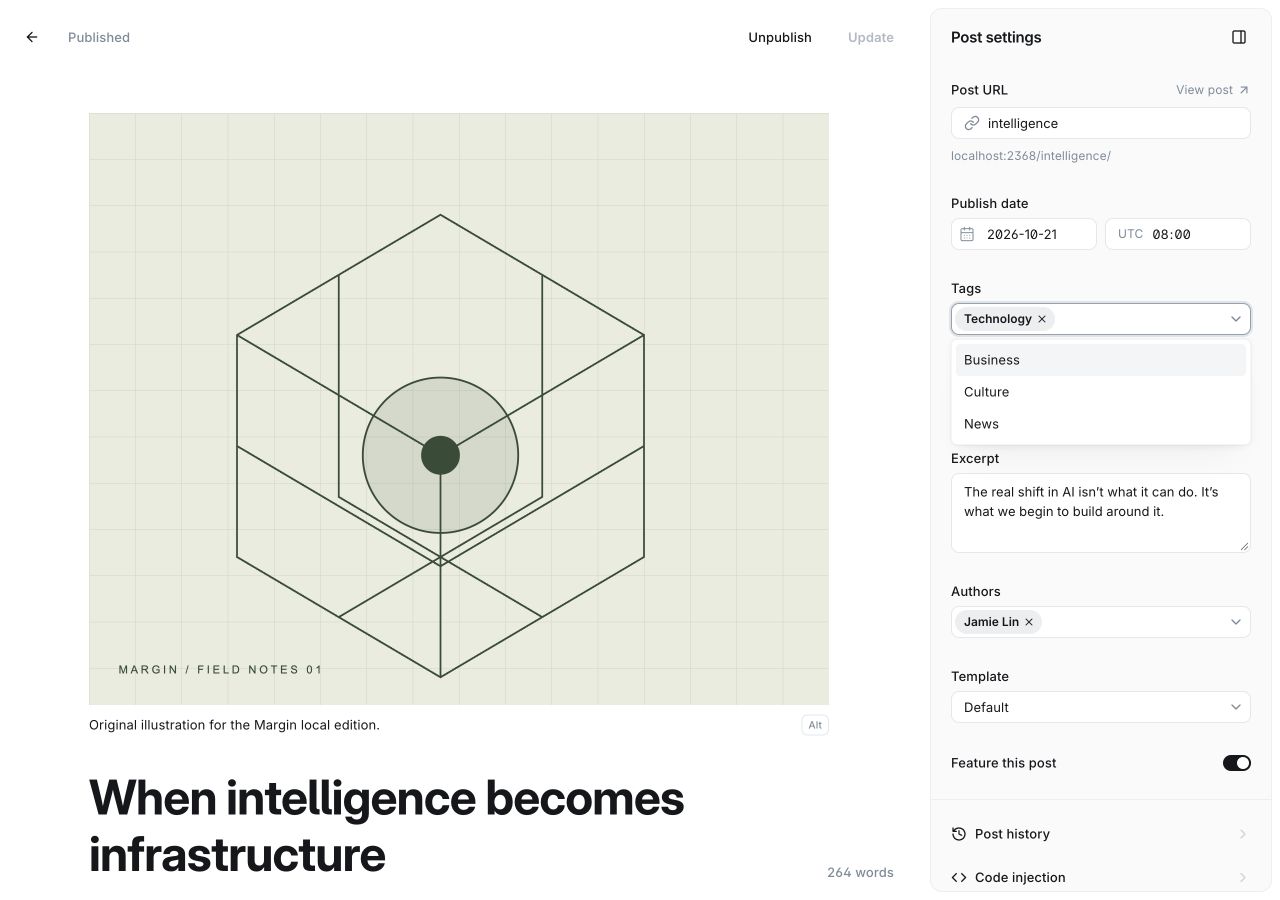
- Click the Tags field and type to find a tag. Selected tags appear as chips; Technology is already assigned in this example.
- Choose a tag from the suggestions to attach it. Put your main public topic first: Margin uses the primary tag for topic links and related posts. Manage reusable tags under Ghost Admin → Tags.
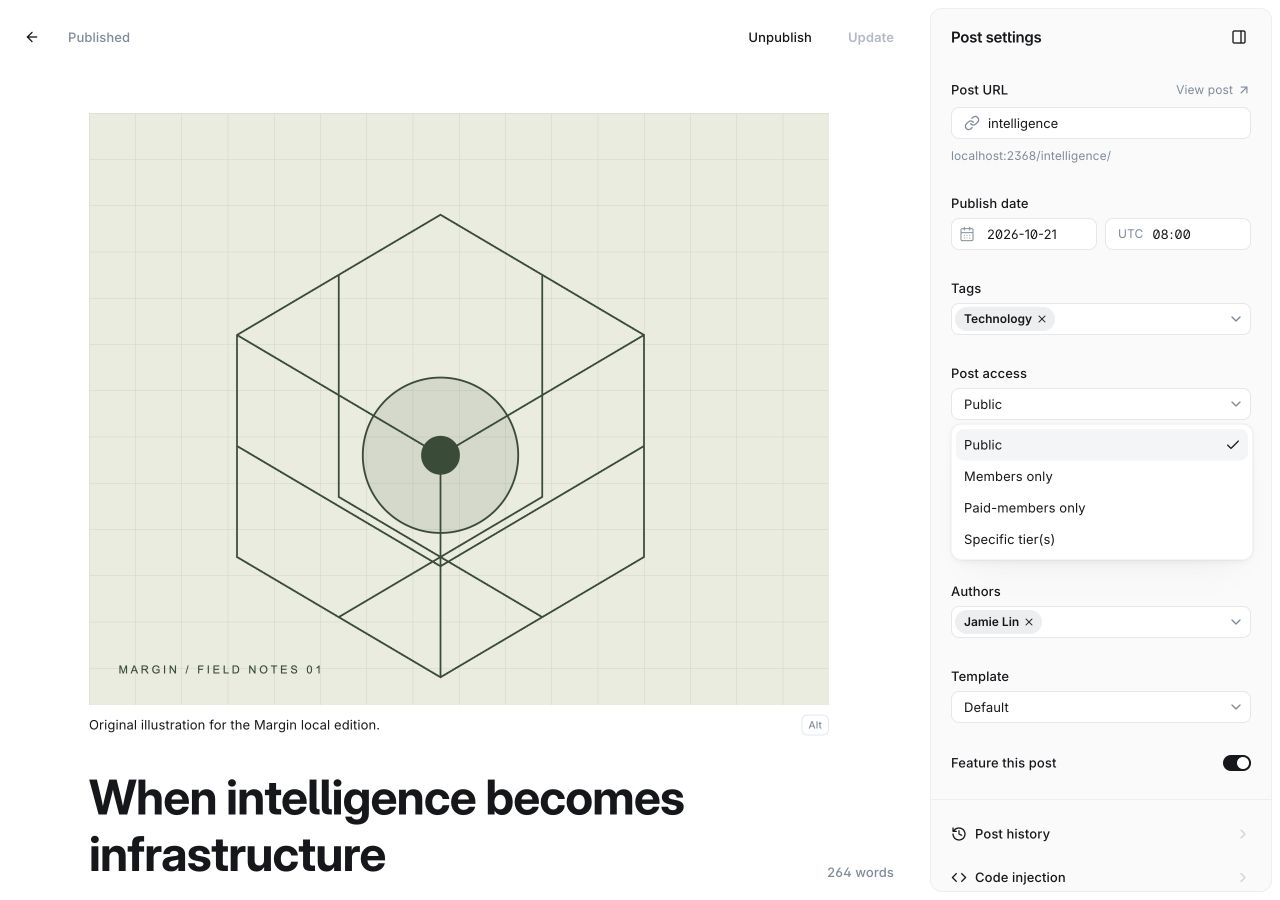
- Open Post access in the post settings panel. The example remains set to Public.
- Choose the audience for your article: Public, Members only, Paid-members only, or Specific tier(s). For a tier-specific article, select the eligible tiers in the additional controls. Review the access guide below before publishing.
| Post access | Who can read the full post? | What other readers see in Margin |
|---|---|---|
| Public | Anyone, including signed-out visitors. | The article content. |
| Members only | Signed-in members, including free and paid members. | A membership signup or sign-in invitation. |
| Paid-members only | Members with an eligible paid membership. | A signup or upgrade invitation. |
| Specific tier(s) | Members whose membership grants access to a selected tier. | A signup or upgrade invitation when their membership does not grant access. |
Preview, publish, or schedule your article
Once your draft is saved, review it in Preview, choose the delivery mode, and decide whether to publish immediately or schedule a future date. The green button on the final review screen performs the publication or scheduling action.
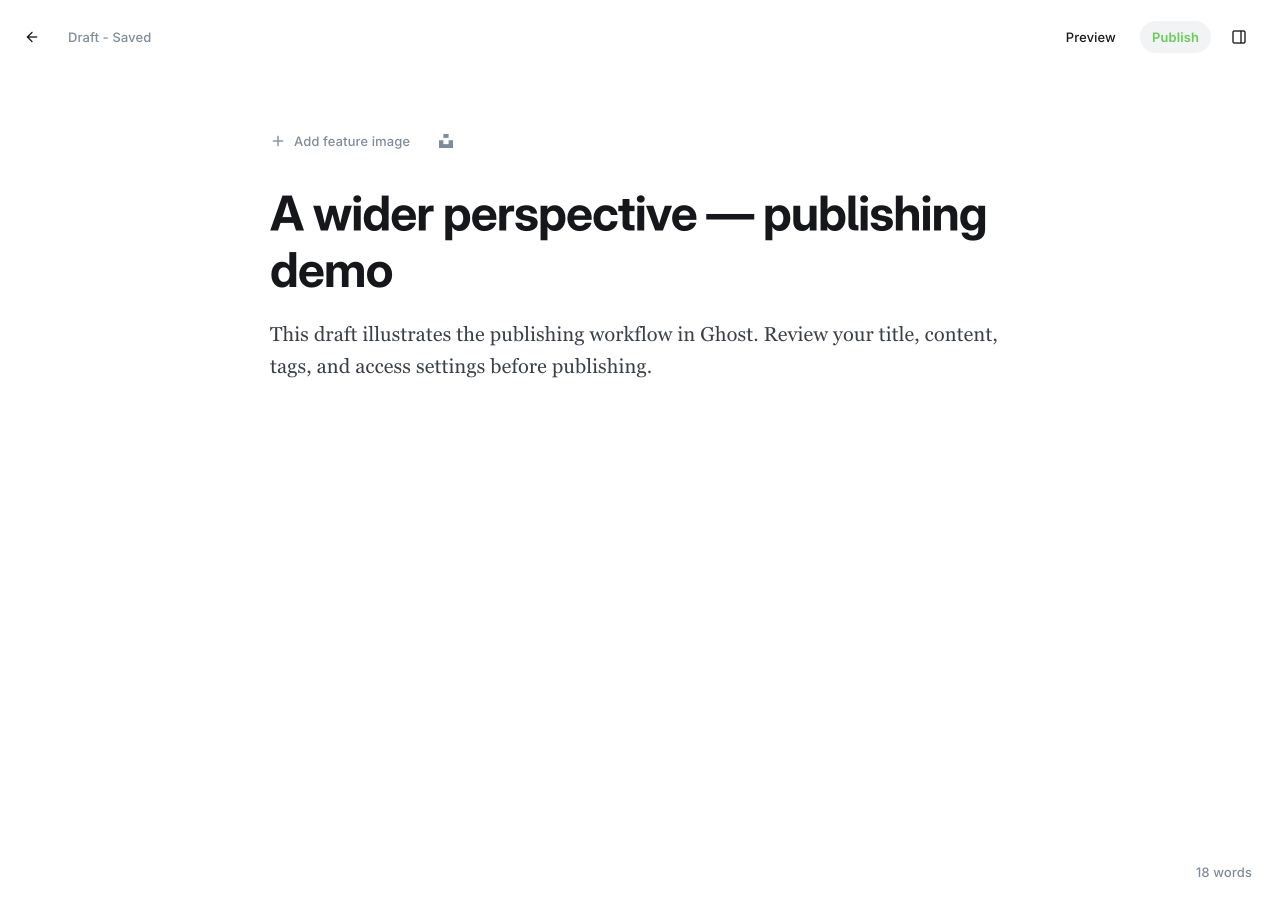
- Wait for Draft – Saved before reviewing your post.
- Click Preview to inspect the article before making it live.
- Click Publish to open the publishing settings. Opening this workflow does not publish the draft.
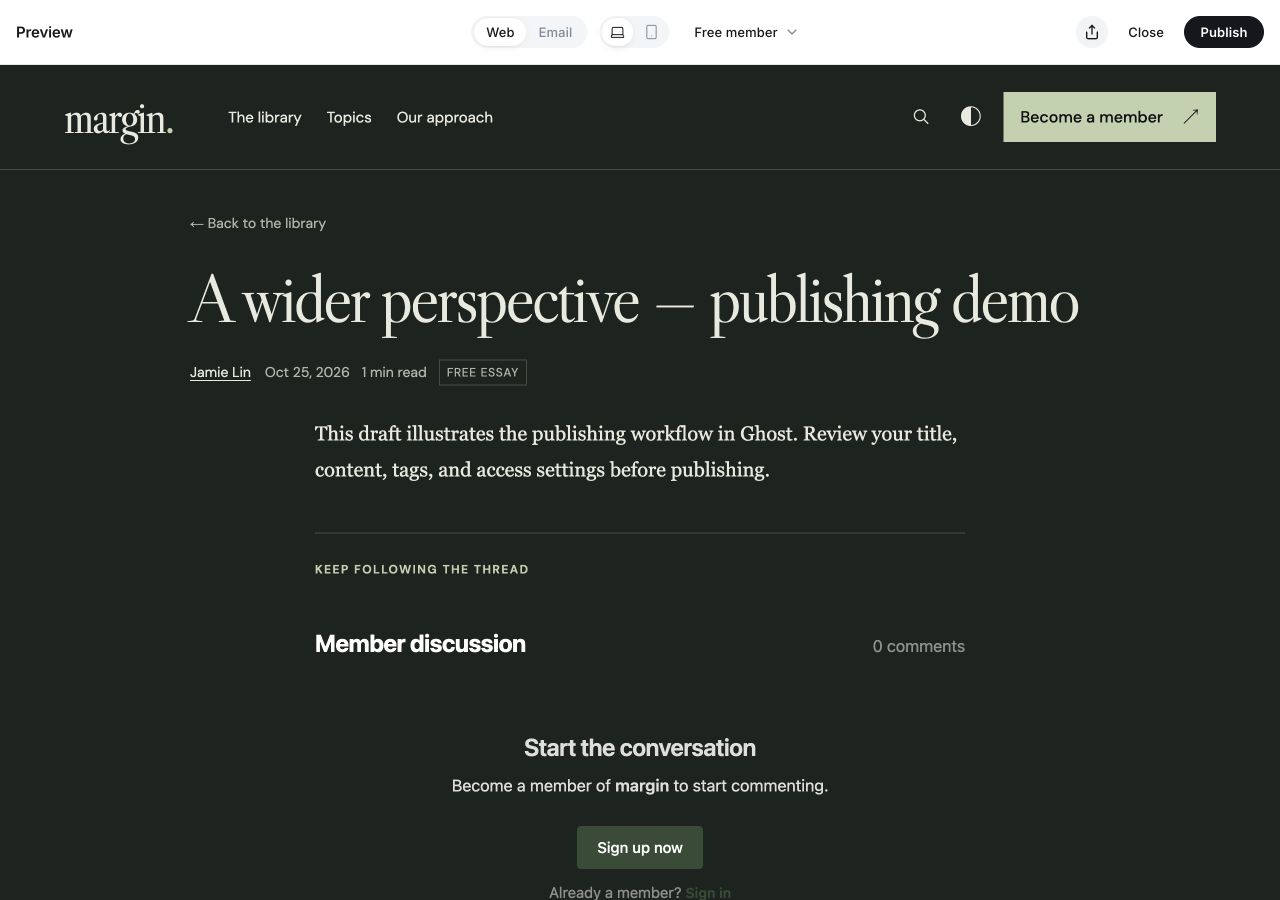
- Use Web to inspect the Margin article. Email previews the newsletter layout, which has its own design settings.
- Switch between Desktop and Mobile to check the title, text, images, and spacing.
- Use Preview as to inspect the available reader states. For restricted posts, also verify access with real member accounts before launch.
- Click Close to return to the draft. Previewing does not publish the article or send a newsletter.
Publish immediately
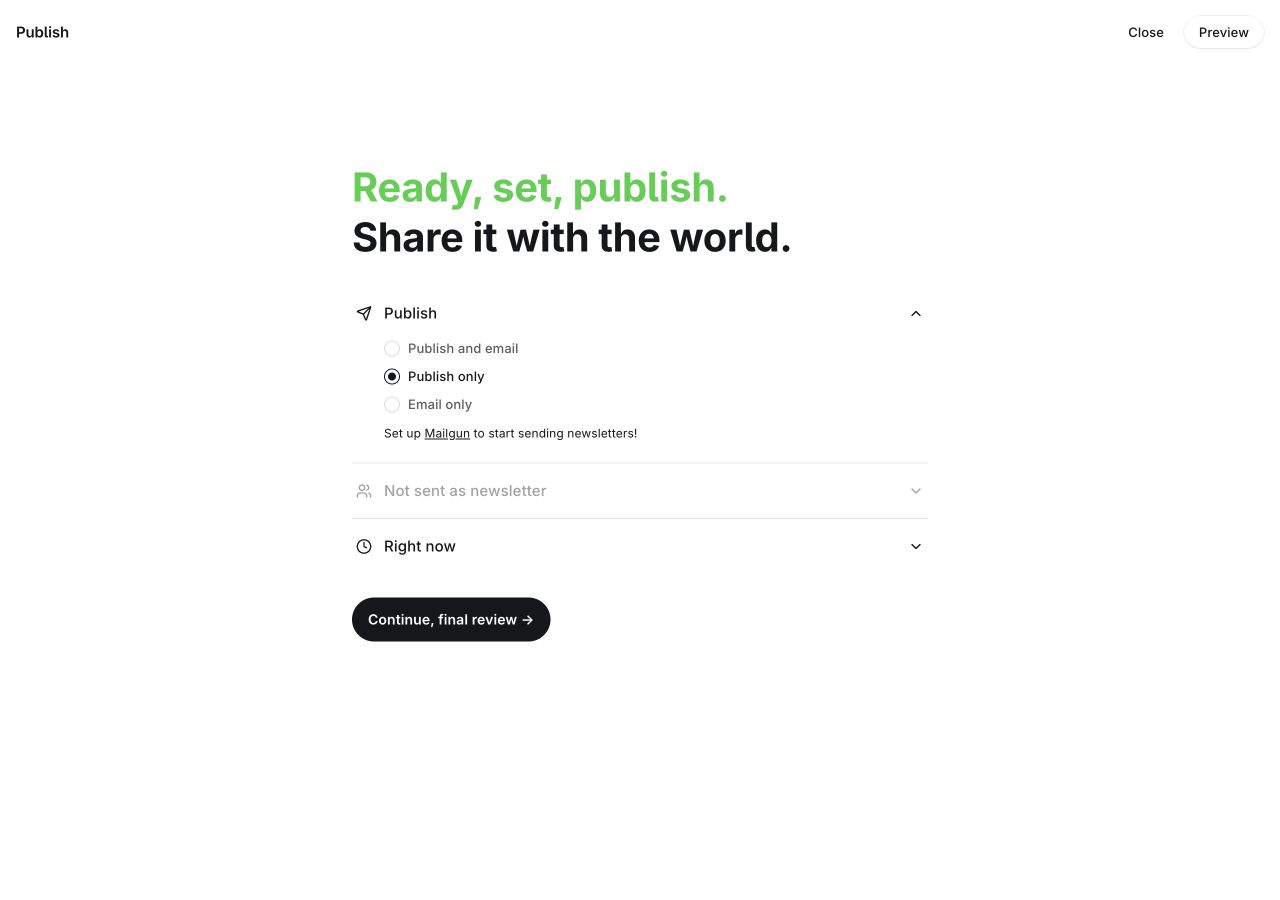
- Expand Publish and choose Publish only for a website article without a newsletter. Publish and email and Email only require configured newsletter delivery.
- Review the newsletter summary. This local installation shows Not sent as newsletter because Mailgun is not configured; the email options are disabled. On an email-enabled site, review the selected newsletter and recipients.
- Keep Right now for immediate publication, or open this row to choose Schedule for later.
- Click Continue, final review →. This opens a confirmation screen; it is not the final publish action.
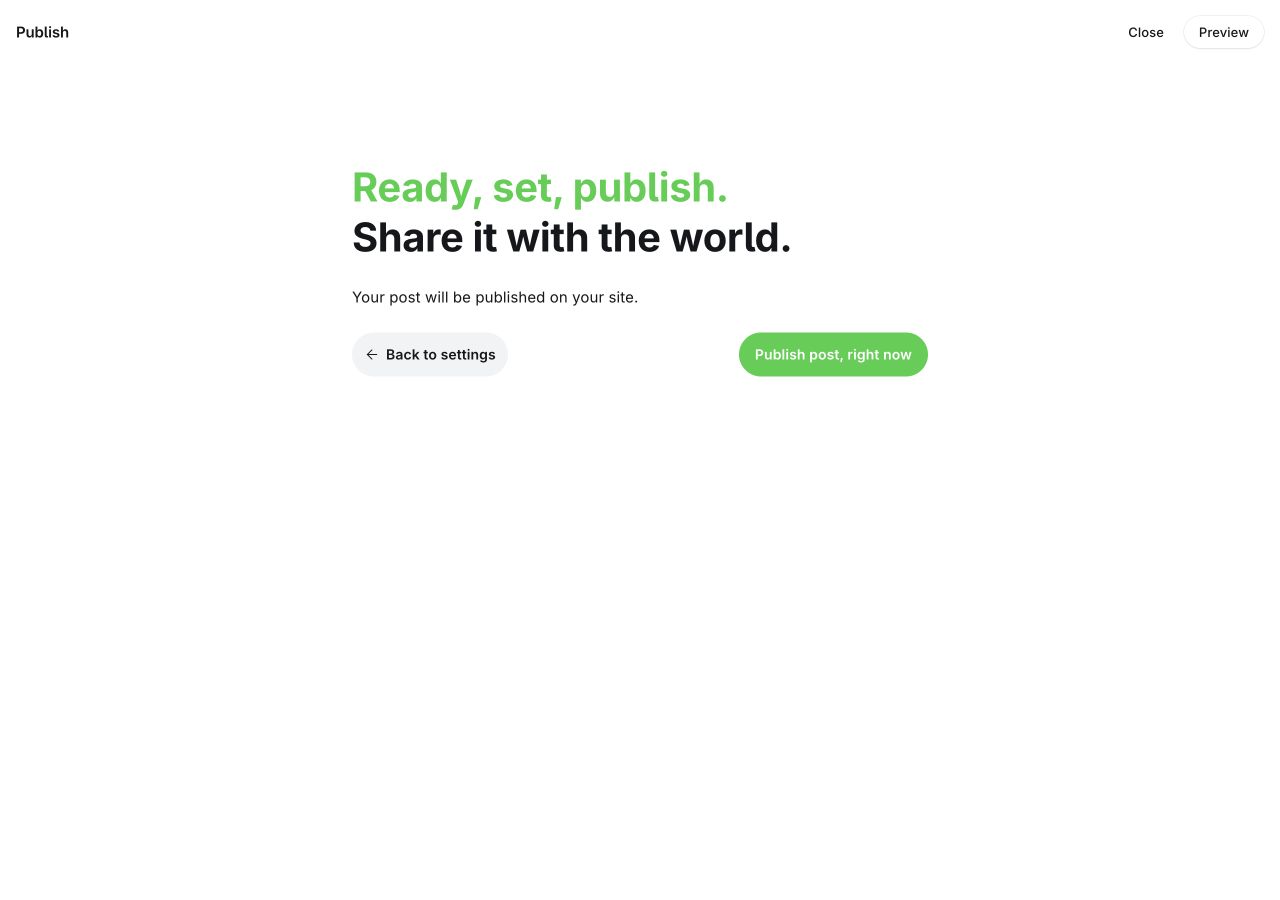
- Read the summary to confirm where the post will appear and whether email is included. This example is website-only.
- Use Back to settings if the delivery mode or timing needs correction.
- When you are ready to make the article live, click Publish post, right now. This is the final action. The documentation capture stops before this button is pressed.
Schedule for later
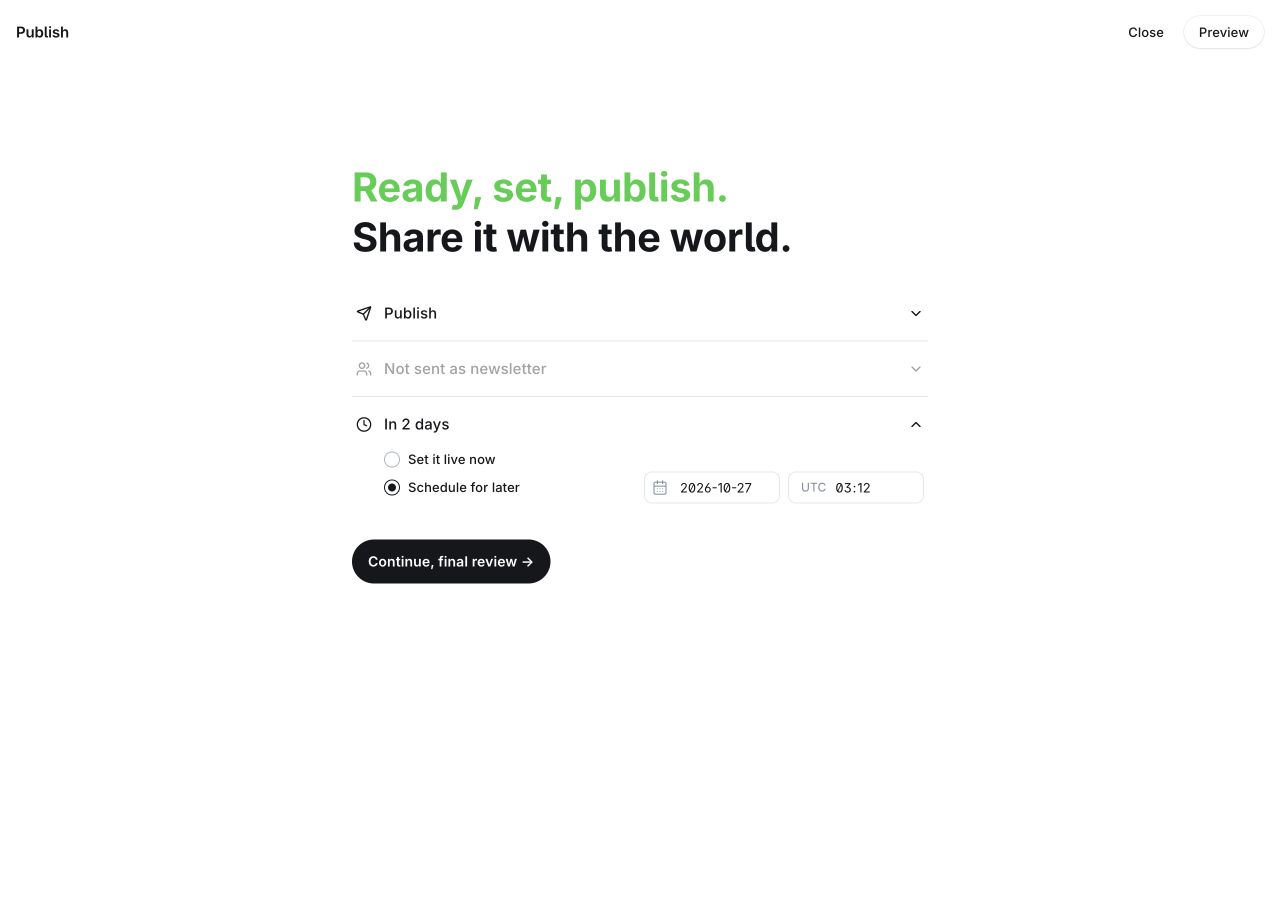
- Open the timing row that initially says Right now, then select Schedule for later.
- Set a future date and time in the timezone displayed beside the time field. This example uses UTC; check your publication timezone under Settings → Timezone. Use your own date, not the example date in the screenshot.
- Click Continue, final review → to review the schedule. A date entered here is not an active schedule until you confirm the final action.
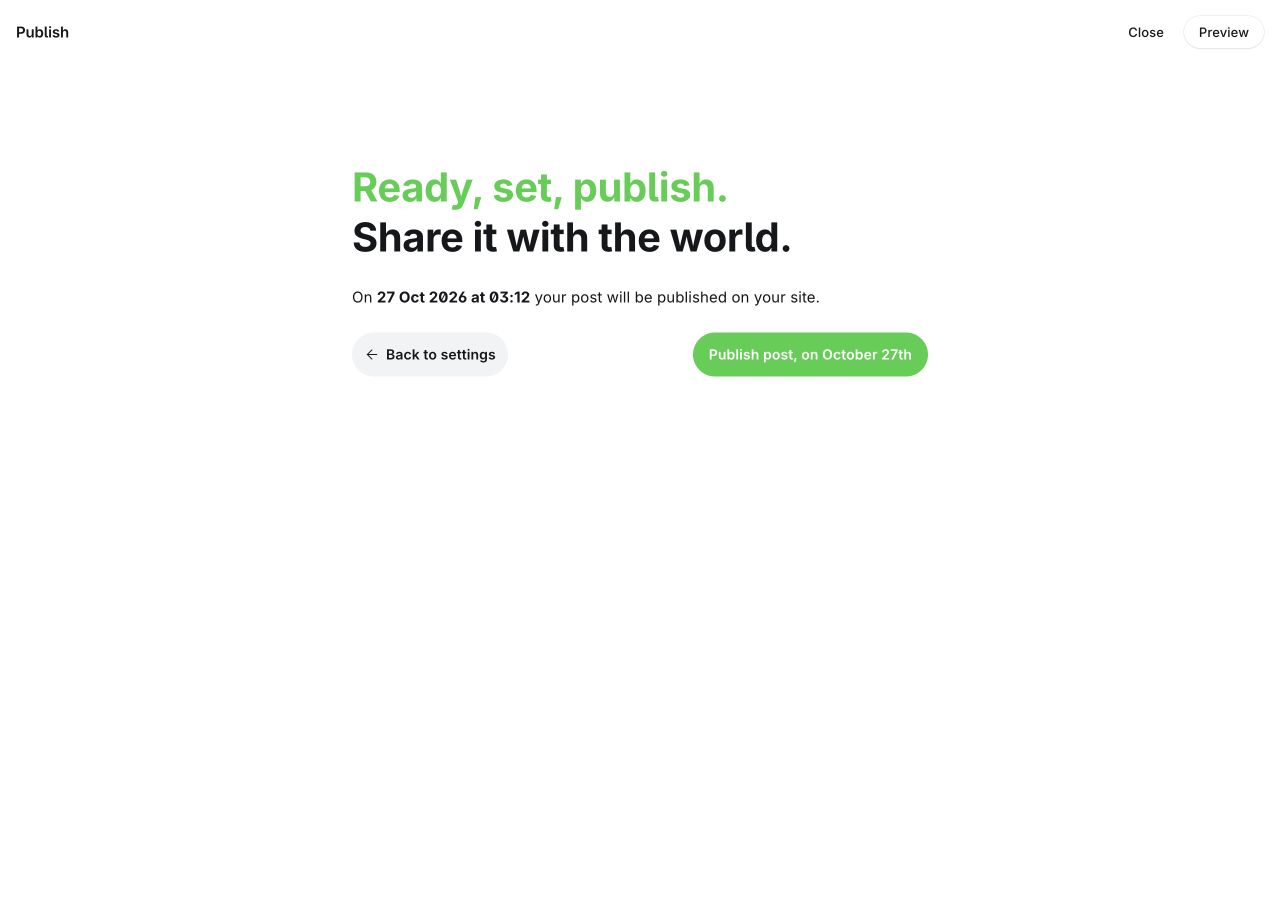
- Check the exact date, time, destination, and email summary. The date shown here is an example, not a recommended publication date.
- Use Back to settings to correct the date, timezone, or delivery choices.
- When everything is correct, use the green Publish post, on [date] button to activate the schedule. Ghost may use different wording between versions. This capture stops before confirmation; no schedule was activated.
Add a takeaways block
Insert an HTML card in the Ghost editor and paste this example. Replace each item with a key takeaway from your essay.
<aside class="takeaways">
  <span class="eyebrow green">The short version</span>
  <ul>
    <li>Your first key takeaway.</li>
    <li>Another idea worth remembering.</li>
  </ul>
</aside>
Add references
Use an HTML card at the end of your post for references. Replace the sample link with your actual source.
<aside class="sources">
  <span class="eyebrow">References</span>
  <ol>
    <li><a href="https://example.com/report">Report title</a></li>
  </ol>
</aside>
Images and editor cards
The theme styles cards including images, galleries, bookmarks, callouts, toggles, buttons, files, audio, video, and products. Wide and full-width editor images remain inside the article’s reading area to preserve the sidebar layout.
Search, Portal, and content access.
Search
The header search button opens Ghost’s native Search. Ghost provides the results; Margin synchronizes the window’s colors and body font.
Signup and sign-in
Signup CTAs open Ghost Portal. Configure membership and the signup experience in Ghost Settings. Signed-in members see an account link in the header instead of the signup invitation.
Paid content
Set Post access in Ghost for public readers, members, or paid members. Ghost checks access; Margin displays the article or the appropriate signup or upgrade invitation.
Comments
Choose who can comment in Settings → Membership → Access. Margin renders Ghost’s native comments below an article when the reader has access.
Authentication email and newsletters
Ghost handles signup, sign-in, and member notification emails. Configure email delivery for your hosting environment. Newsletters have their own design settings in Ghost; changing theme fonts or colors does not automatically change email layouts.
Use the language of your publication.
Margin includes English and Vietnamese interface translations. In Ghost Settings, find Publication Language, choose your site’s language, and save. For example, choosing Vietnamese translates the theme’s built-in labels.
| Translated using the site locale | Written by you |
|---|---|
| Built-in theme labels, access messages, prompts, and default CTAs. | Post titles, excerpts, content, tag names, and tag descriptions. |
| Context-specific CTA labels when Membership CTA is blank. | Hero copy, Signup copy, and any custom Membership CTA text. |
Ghost’s own translation system manages Search and Portal labels. Choosing a locale does not translate your articles or create a multilingual site with automatic content switching.
Upgrade while keeping your own identity.
Back up before updating
Download your current theme and routes, and record your design settings. Keep a separate copy of any direct template or CSS changes.
Upload the new ZIP
Use Upload theme, then activate the new version. Ghost can retain settings whose keys remain the same; new options use their release defaults.
Review your important pages
Check the homepage, library, public and locked articles, Search, Portal, and mobile layouts. Replace routes only when a release requires it or when you deliberately change your site structure.
Design controls introduced in 0.5.0
- A shared membership CTA label.
- Three homepage section switches.
- Independent contents-rail and related-post switches.
- A System / Light / Dark website default that respects reader preferences.
- All 13 previous settings retained, for a total of 20 custom options.
Commercial license and support
Margin uses a Single Website commercial license. A valid purchase permits one production Ghost publication, with unlimited local, development and staging copies serving that same website. Separate publications require separate licenses, including publications on subdomains.
| Topic | Included terms |
|---|---|
| Use and customization | Personal or commercial publishing, paid memberships and source-code changes for the licensed website. |
| Client work | Build one client website and permanently hand over its license under the notice requirements in LICENSE.txt. Handover does not restart the support period. |
| Redistribution | No theme ZIP sharing, public source repository, template resale or reuse across independent websites under one license. |
| Updates and support | 12 months from the original purchase date. Includes access to updates released during that period and email help for installation, documented settings and reproducible original-theme defects. |
| After 12 months | Continue using versions you lawfully received. Renewal for further updates/support is optional, with no automatic recurring charge. |
| Support limits | Custom development, server administration, content migration and operation of SMTP, Stripe or other third-party services are outside included support. No response-time guarantee is included. |
| Third-party assets | Bundled fonts retain their own SIL Open Font License terms; the commercial restrictions do not override those rights. |
This summary does not replace the full commercial license and support policy. Contact contact@atelierthemes.com with your order reference for licensing or support questions. Never send passwords or API keys.
Margin 0.5.3 also aligns native Comments button colors with the theme; the commercial license and support policy introduced in 0.5.2 remain unchanged. It has not been confirmed as accepted into the Ghost Marketplace. Purchase price and checkout information are provided separately by Atelier Themes.
When things do not look quite right.
Does the library or topic index return a 404?
Check that the correct routes.yaml is uploaded. Visit /library/ and /topics/ directly, verify your menu destinations, and remove any conflicting Page slugs.
Why does my homepage look different from the demo?
The theme does not install demo content. Publish posts, add public tags with descriptions, and mark introductory posts Featured. Check the Show… switches in Theme → Homepage.
Why is the signup banner missing?
Check that membership is enabled, you are signed out, and Show homepage signup is on. Signup banners intentionally hide for signed-in members.
Why is the table of contents missing when enabled?
Add actual H2 headings in the editor. Margin hides the contents rail if there are no H2 headings or the reader cannot access the article content.
Why are there no related posts?
Enable Show related posts, assign a primary tag, and publish another post with the same primary tag. Sharing only a secondary tag may not meet this condition.
Why does changing Default color scheme have no effect?
A saved reader preference takes priority. Test in a browser profile with no saved color preference. See Colors & reading for the preference order.
Why do Light accent and Dark accent have no effect?
These fields apply only when Color palette is Custom. Click Save and reload the site. The rendered accent may differ slightly from the picker because of the theme’s contrast adjustment.
Why does the font change for some accented characters?
The selected font may lack the required glyphs, or the provider’s font files may not have loaded. Try a pair with full language coverage, check your network connection, and reload.
Why is Portal not sending sign-in email?
Check Ghost’s email configuration and your test mailbox when running locally. The theme opens Portal; Ghost and your mail service handle authentication email delivery.
Why does the website still show my old settings?
Click Save, confirm the correct theme is Active, and reload the site. During development, adding files or changing package.json may require restarting Ghost. With a ZIP installation, external source-folder changes do not update the uploaded copy automatically.
Help make the issue reproducible.
Theme support: contact@atelierthemes.com · Atelier Themes.
Include your Ghost version, Margin version, affected page, browser, screen size, and steps to reproduce the issue. Add a screenshot for layout problems.
Before you launch
- Activate the theme and verify routes and navigation.
- Replace the publication name, description, logo, and Hero/Signup copy.
- Publish posts, tags, featured selections, and your About page.
- Check colors, fonts, long headings, and CTAs on mobile.
- Test Search, Portal, email delivery, and content access on your own website.
- For paid subscriptions, connect Stripe and test the real checkout separately.